What Is a NAS? Complete Buying and Setup Guide for Home and SME Use
What Is a NAS? Complete Buying and Setup Guide for Home and SME Use
Last month, a photographer client brought in a dead external hard drive containing 3 years of client photos — weddings, babies, graduations — with no backup. The drive just clicked when plugged in. "If you keep everything on one external drive, this day was always coming," I told him. Data recovery saved about 80%, costing him thousands. As he left he asked: "Is there something I never have to worry about again?" I said: "Yes. It's called a NAS."
What exactly is a NAS?
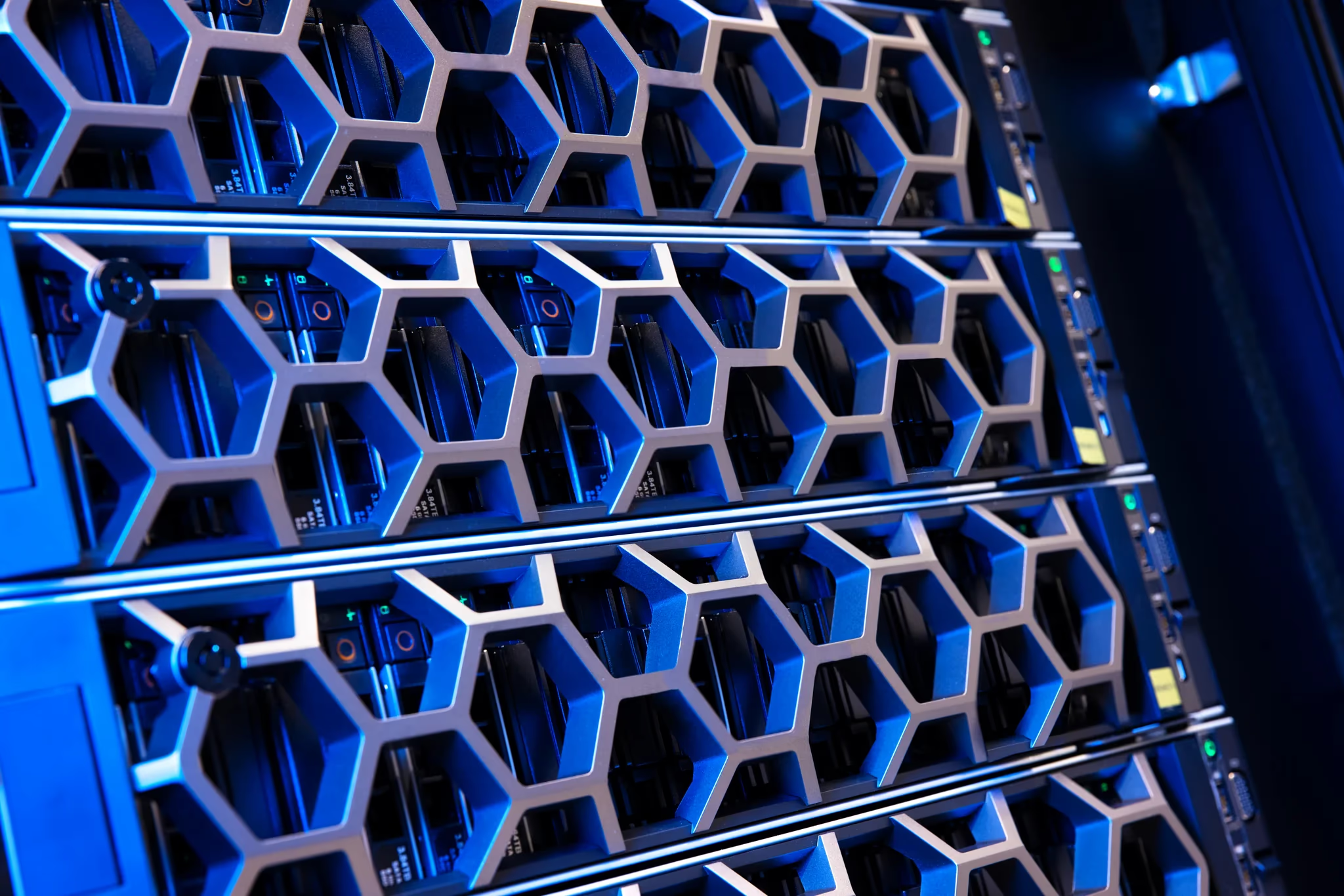
A NAS (Network Attached Storage) is essentially a small computer dedicated to storing your files, connected to your home or office network so every computer and phone can access files over WiFi. Key differences from an external drive:
- Multiple drives with RAID — one drive dies, your data survives; swap in a new drive and it rebuilds automatically
- Always on — no plugging in; access your files anytime, even away from home
- Automatic backups — computers and phones can back up to the NAS on schedule
- Shared access — the whole team opens the same folders, no more emailing files around
Which brand? How to choose?
- Synology — best software, Windows-like interface, ideal for beginners and SMEs. DS224+ (2-bay) is plenty for home; DS423+ (4-bay) suits small offices
- QNAP — better hardware value, feature-rich, for tinkerers
How many bays? 2-bay is cheapest and runs RAID 1 (mirrored — one drive can die safely). 4-bay runs RAID 5 with better capacity efficiency and room to grow. If budget allows, go 4-bay — you won't need to replace the whole unit when you need more space.
Which drives? Always use NAS-rated drives (WD Red Plus / Seagate IronWolf) designed for 24/7 operation — regular desktop drives die fast in a NAS. Start with 2×4TB for a typical family; photographers should consider 2×8TB or more.
RAID explained (you need to know this)
- RAID 1 (2-bay): both drives hold identical data; one can die with zero data loss. Capacity = one drive
- RAID 5 (3+ bays): survives one dead drive; capacity = (drives − 1) × single-drive size — best value
- SHR (Synology): auto-picks the right RAID for you — beginners should just use this
Remember: RAID is not backup! It protects against drive failure, not accidental deletion, ransomware, fire or flood. Keep another copy elsewhere (external drive or cloud) — that's the 3-2-1 backup rule.
Setup walkthrough (Synology example)
- Install drives, connect power and LAN cable to your router
- Visit
find.synology.comin a browser and follow the wizard to install DSM - Create a storage pool using SHR (recommended for beginners)
- Create shared folders (e.g. Photos, Work, Videos)
- Create user accounts — don't use admin daily
- Install Synology Drive: auto-sync from PCs with version history (recover deleted files)
- Install DS file / Photos on phones: auto-backup camera photos to the NAS
- Enable Hyper Backup: back the NAS up again to an external USB drive or cloud
Real case: an accounting firm dodged disaster with a NAS
Earlier this year, an accounting firm's server died in Wan Chai — nobody could open client files. Luckily we'd installed a Synology DS423+ for them last year with nightly server backups to the NAS. While the server was being repaired, the whole office worked off the NAS backups for two days without missing a single job. The boss later told me: "That NAS was the best IT money I ever spent."
FAQ
- How much does it cost? 2-bay unit ~HK$2,000–2,800 plus two 4TB NAS drives ~HK$1,600–2,000 — around HK$4,000 all in; 4-bay units ~HK$3,800–4,500
- Is it noisy? Where to put it? It has fans — keep it out of bedrooms; a living-room cabinet or office server room is fine
- Can I access it away from home? Yes — Synology QuickConnect / QNAP myQNAPcloud, no router configuration needed
- Is it hard to use? Modern NAS interfaces feel like using Windows — if you can browse the web, you can use one
Summary
If your photos, documents and work files live on just one computer or one external drive, it's not "if" disaster strikes — it's "when". A NAS is your private cloud: survive dead drives, back up automatically, share across the family or office. One investment, sleep easy.
Want a NAS but not sure which one, or don't want to set it up yourself? WhatsApp CentralComputer — we handle everything from selection to installation to backup configuration, on-site across Hong Kong.
Related: Computer Repair | 3-2-1 Backup Rule Explained | Blog
Found this article helpful?
Feel free to share it with your friends or colleagues.